
Try On Twin
Set up Try On Twin on Shopify.
Install the app, enable the product-page button in your theme, then choose a subscription. You can complete the standard setup through Shopify without editing theme code.
Install from the Shopify App Store
Open the Try On Twin listing, select Install, and follow Shopify’s permissions and installation screens for your store.
Enable the theme app embed
Open the app’s onboarding page and select Enable App Embed. In Shopify’s theme editor, open App embeds and enable the app’s preview or try-on button. Save the theme. The demo screenshot below shows Try-On Button.
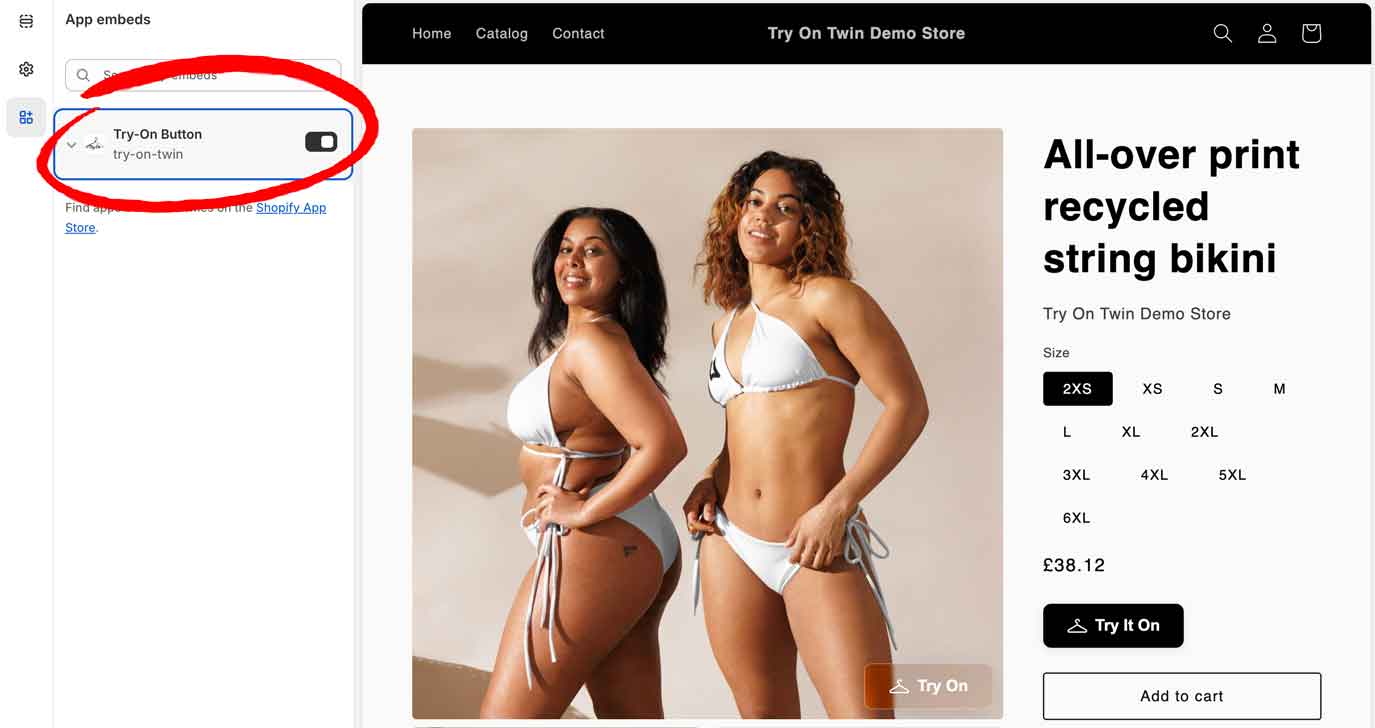
Existing Try On Twin demo-store screenshot: the Try-On Button app embed, an image-overlay button and an inline product-page button. Labels can vary by app or theme version. Button settings can include an overlay on the product image and an inline button near the purchase controls. Choose the positions that suit your template, then save and check the storefront.
Choose and approve a subscription
Return to the app and open subscription setup. Compare the available plans, then approve your chosen plan and any usage-based charge through Shopify. Merely installing the app does not complete this billing step.
Check products and run a preview
Check which products have previews enabled in the app. Open a product page on desktop and mobile, use a photo you have permission to upload, and compare the result with the original product image.
Check the button on each product template and product gallery you use. If it is missing, confirm the embed is enabled in the right theme, save, refresh the storefront and check the app’s product settings.
Review before launch
Make product measurements or size information easy to find. Link your store’s relevant photo and privacy guidance. Ask support about custom themes or an unclear setting before rolling out to every product.
Made for Shopify merchants
Bring the look closer.
Explore the examples, check the plans and try the workflow on your store.